
Team skills
Capture your team's process once and let the Agent follow it every time it works on a deal.
What a skill is
A skill is a piece of written guidance the Agent applies on behalf of your team. It's the briefing you'd give a new analyst on day one — your firm's voice, the questions you always ask, the way you compare an opportunity against a strategy, the structure you expect a memo to follow. Write it once in plain English and the Agent uses it from then on.
Three ways a skill is different from a one-off prompt:
- They are persistent. Once saved, the Agent has access to them in every conversation and on every scheduled run.
- They are team-wide. Everyone in your company sees the same set of skills and gets the same behaviour from the Agent.
- They are invoked automatically. You don't pick a skill from a dropdown. The Agent reads your conversation, decides which skill (if any) applies, and uses it.
Propstreet ships with a built-in set of skills that cover the most common broker workflows. On top of those, your team can author its own skills to encode the way you work.
Find your team's skills
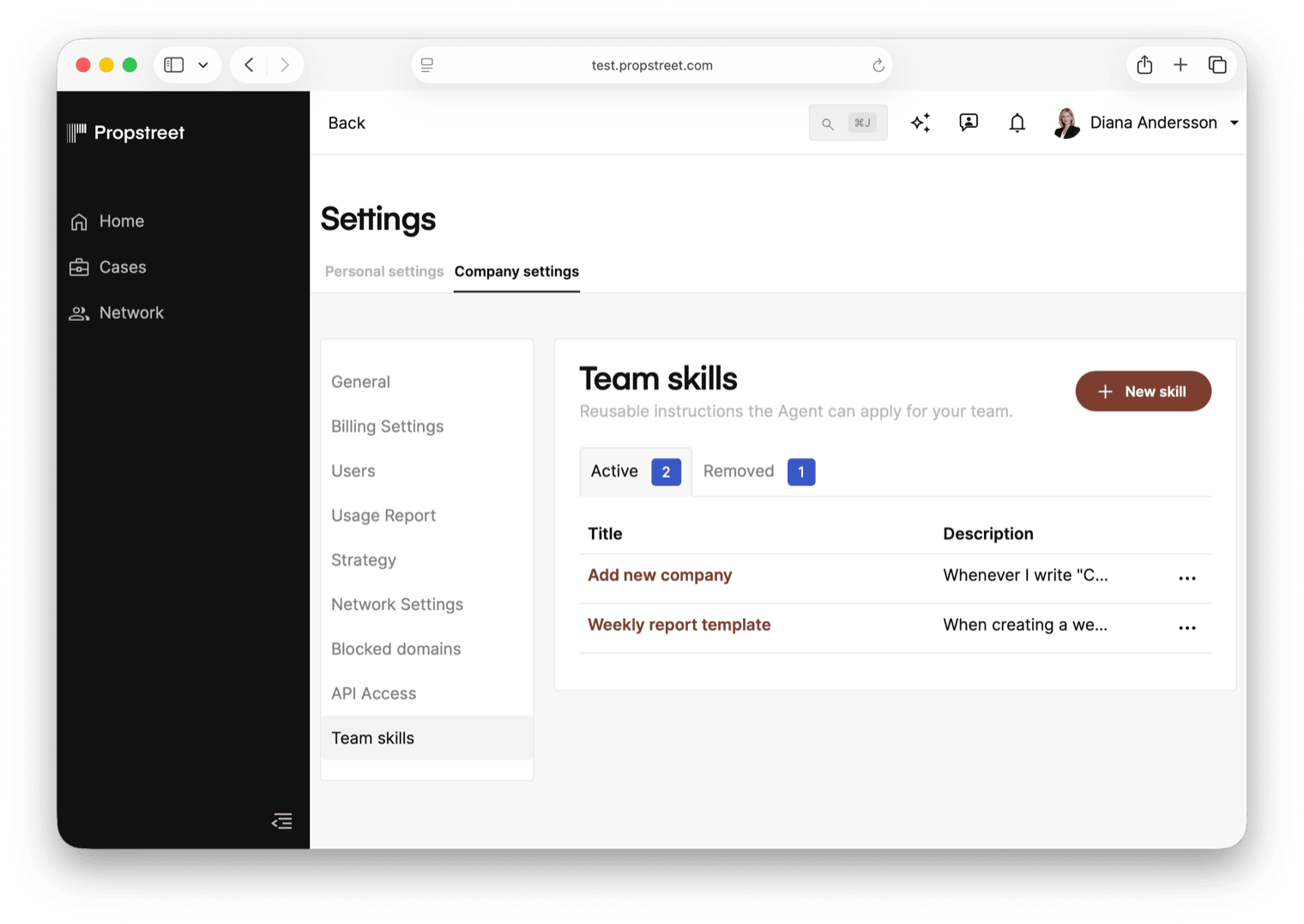
Open Company Settings → Skills from the user menu. The page is titled Team skills and has two tabs at the top:
- Active — every skill your team can use right now. Each row shows the title, the description (when should the Agent use it), who edited it last, and a three-dot action menu.
- Removed — skills your team has deleted recently. They can still be restored from here, until they expire.
Just above the New skill button you'll see a quota meter — for example "4 of 20 skills created". Twenty active team skills is the cap; we'll come back to that in step 7.
Start from a template — or write your own
Click New skill. If you've never authored a skill, the easiest way in is the Starter templates gallery that appears below the button. Each template is a complete, working skill that you can publish as-is or edit to match your team's voice.
The starters cover the workflow end to end — mandate review, investor fit and outreach, send-off QC, committee memo, watchlist monitoring:
| Template | What it does |
|---|---|
| Deal readiness checklist | Reviews a mandate before you start sharing it with selected investors. |
| Investor fit and first outreach | Drafts the first contact to a matched investor with the right tone. |
| Teaser quality control | Checks an outgoing email, Teaser or summary for problems before you send. |
| Broker tone and approval rules | Encodes how messages should be written on behalf of the team. |
| Investment fit screen | Reviews an opportunity against an investor's strategy. |
| First-pass diligence questions | Prepares the questions you'd ask a broker or seller in a first call. |
| Investment committee memo outline | Structures an internal decision memo. |
| Portfolio and watchlist monitor | Reviews network updates against the mandates and properties you care about. |
Click Use template on the one you want and it opens the editor pre-filled. Adjust the wording, then save. To start from scratch, ignore the templates and start typing in the editor instead.
Fill in the four fields
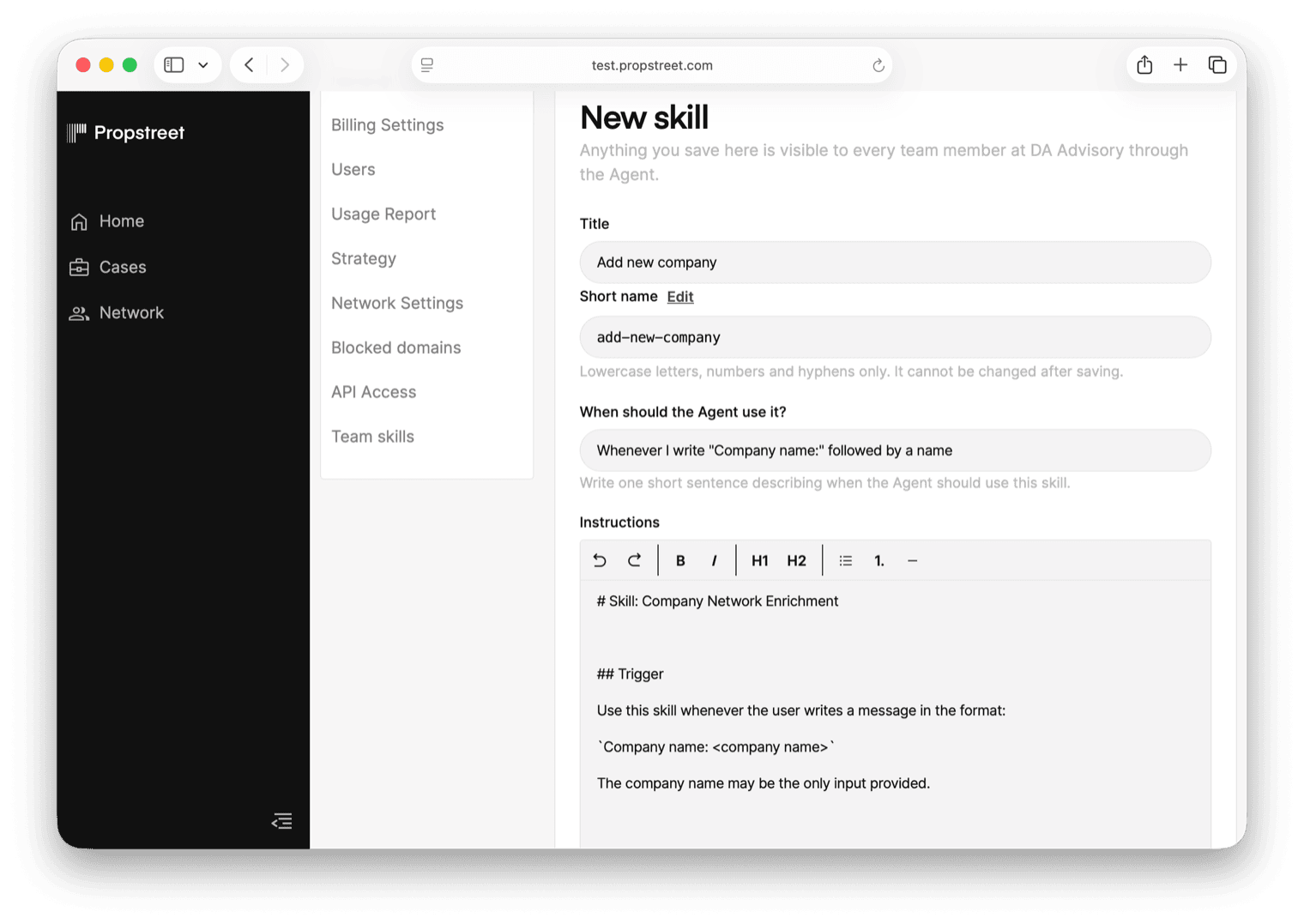
Every skill has four fields:
- Title — a human-readable name that shows up in the Settings list and the Agent log. Deal pricing rules or Logistics underwriting standards both work. Up to 120 characters.
- Short name — a kebab-case identifier the Agent uses internally, for example deal-pricing-rules. It's auto-generated from your title; click Edit to override it. Lower-case letters, numbers and hyphens only, and it can't be changed once saved.
- When should the Agent use it? — one sentence that tells the Agent when this skill is relevant. This is the most important field on the page: the Agent reads it on every conversation to decide whether to apply your skill. Be specific. "When reviewing a new opportunity against an investor's strategy" will be picked up correctly; "General analysis" will not.
- Instructions — the body of the skill, in plain Markdown. This is where you tell the Agent what to do. Use full sentences, numbered steps, headings, lists — whatever reads clearly. Up to 16 KB of text, which is enough for a substantial brief.
Write the Instructions field the way you'd brief a new colleague. A working example for an investment-fit skill: "Compare the opportunity with the investor's asset classes, geography, ticket size and return targets. Summarise the fit, list concerns, and call out the three or four key facts the investor will need. Always separate what we know for sure from what we're assuming."
The page shows a preview on the right (on larger screens) so you can see how the Agent will see your skill while you write.
The "When should the Agent use it?" field drives whether your skill ever gets used. If a skill never fires, the description is almost always the reason — tighten it and try again.
How the Agent picks a skill
You never pick a skill manually. The Agent reads your conversation (or the instructions on a scheduled run), looks at the descriptions of every active skill, and decides whether to apply one. If a skill applies, the Agent follows its instructions. You'll see a note in the Agent's reply explaining which skill it used and why.
This means a skill is only as good as its description. If two skills could plausibly apply to the same situation, give them sharper, more distinctive descriptions so the Agent can tell them apart.
If you want to know exactly which skills are active in a given conversation, ask the Agent: "Which skills are you using right now?" — it will tell you.
Edit, version, remove, restore
The three-dot menu on each row in the Active tab gives you:
- Edit — opens the editor with the saved values. Make changes and click Save at the bottom. The footer shows "Last edited by … on …" so you can see who touched it last.
- View history — opens a modal listing every past version. You can restore an older version directly from here if the latest revision turned out worse than the previous one.
- Download skill — exports the skill as a single .md file with frontmatter. Useful for backups and for moving skills between Propstreet accounts.
- Remove — moves the skill to the Removed tab. The Agent stops using it immediately. A confirmation dialog reads "Remove '…'? You can restore it from history for a limited time."
To bring a removed skill back, switch to the Removed tab and click Actions → Restore. The skill and its full history reappear in Active.
If two people edit the same skill at the same time and one saves before the other, the late save still succeeds, but you'll see a notice: "Someone else saved this skill while you were editing. Your version is now saved. View history to compare." Open the history modal to reconcile.
Limits and rules to know
Three hard rules:
- Twenty active skills per company. When you hit the cap, New skill is disabled and you'll see "Skill limit reached". Remove an old skill or rewrite an existing one before adding another.
- No secrets in the body. Passwords, API keys and access tokens are detected automatically and the save is rejected: "Secrets detected in the skill body." Skills are visible to your whole team — never include credentials.
- Team visibility is non-negotiable. Everything you save is visible to every team member at your company through the Agent. There's no per-user, per-role or per-case scope. The page reminds you of this at the top of the editor: "Anything you save here is visible to every team member at … through the Agent."
- Skills capture how your team works so the Agent does the same thing every time
- Open Company Settings → Skills and click New skill to author one — or start from a Starter template
- Put real care into "When should the Agent use it?" — that's the one sentence that decides whether a skill ever fires
- Up to 20 active skills per company. Use the Removed tab to wind down skills you don't need any more
A small, specific skill beats a big generic one. Three skills called Logistics deal screen, Office deal screen and Residential deal screen will beat one called Deal screen every time — each description tells the Agent exactly when to apply it, and the Agent's dispatch logic does the rest.