
Meet Propstreet Agent
Already wired to your pipeline, your network and your vocabulary — open the panel and ask.
What the Agent is
Propstreet Agent answers questions about your cases, your network and your pipeline. It drafts reports and emails, updates the CRM when you ask it to, and searches the public web when the answer isn't in Propstreet yet. It runs on a frontier reasoning model — the same class of model that powers the best general-purpose chat assistants — but where a general assistant starts from scratch, the Agent already knows what a mandate, a Teaser and a Pre-Market deal mean to you, and it can see this morning's prospect movement on your active cases.
You don't train the Agent. You don't write a prompt template. You open the panel, type a question in plain English (or Swedish, German, Danish, Norwegian, Finnish or French — whichever language Propstreet is in), and you read the reply.
In practice the Agent works like an analyst who joined yesterday, has already read your entire pipeline, and asks for sign-off before doing anything that can't be undone.
The Agent is wired to your Propstreet tenant. It sees only what you can already see — your firm's cases, your firm's contacts, your firm's activity. It cannot see another firm's pipeline, and another firm cannot see yours.
Where to open it
The Agent lives in a panel that opens on the right side of the screen. There are three ways to open it, and you'll find yourself using all three depending on what you're doing:
- From the top bar. Click the Agent icon (top right, next to your profile). The panel slides in alongside whatever you were doing — the case stays open, the prospect list keeps scrolling, the property page is still visible. You can drag the panel's left edge to make it wider; on a small screen it opens as a full-screen overlay.
- With the keyboard shortcut. The panel shows the shortcut in its top-right corner the first time you open it; on most keyboards it's a one-key chord that toggles the panel. Once you've used it twice, you stop reaching for the mouse.
- From inline shortcuts around the product. Many pages have a small Ask the Agent action that pre-fills the chat with a starting question that fits the page — "Summarise prospect movement on this case…" on a case, "Help me evaluate this Teaser…" on an offer, "Suggest more investors for this case…" on a shortlist. The shortcut opens the Agent with the page's context already loaded.
The panel has a header with tabs for the conversations you've had, a body with the message thread, and a footer with the chat input. Closing the panel does not end the conversation — it parks it. The next time you open the Agent, the conversation you were in is right where you left it.
Your first conversation
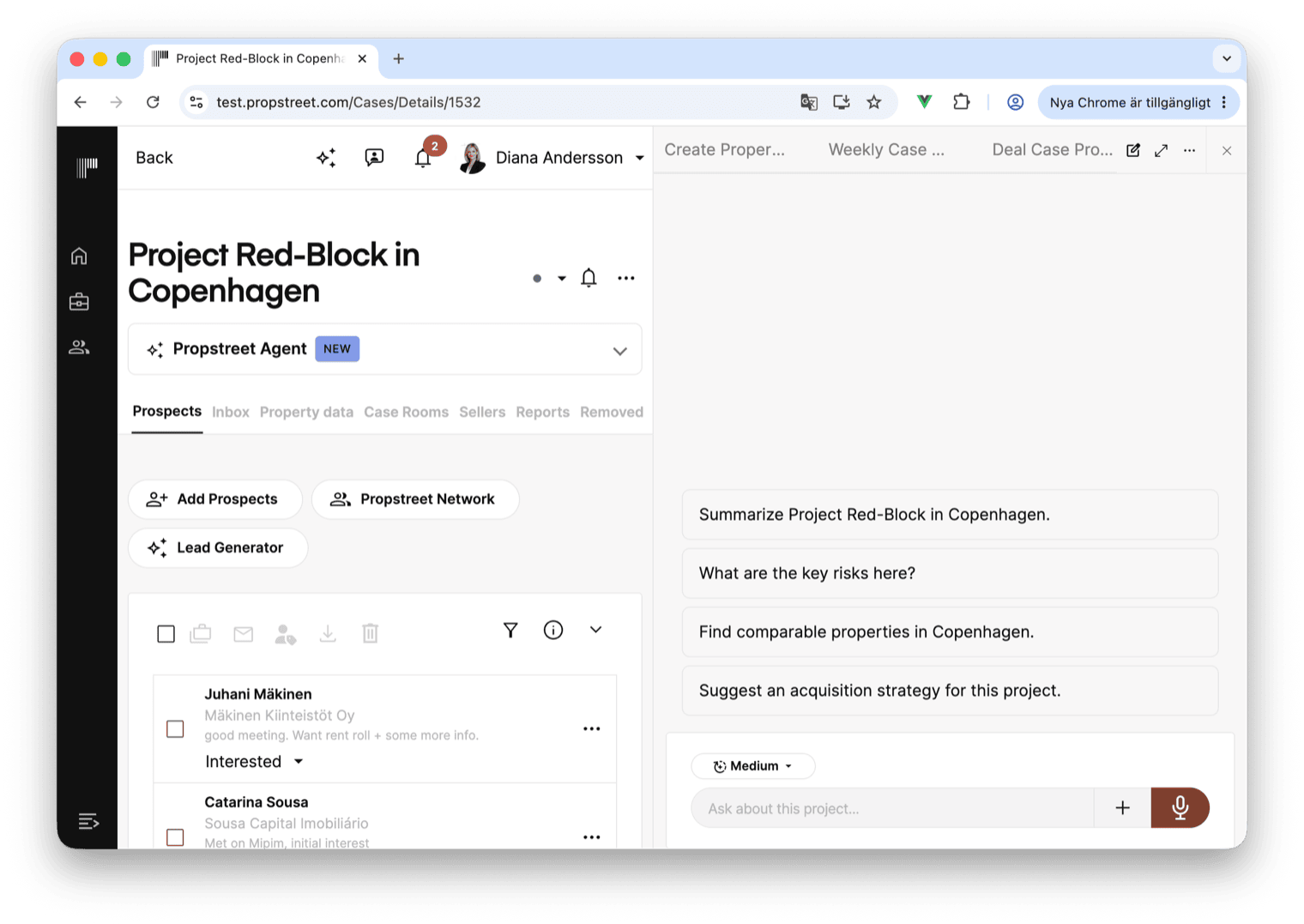
If you've never opened the Agent before, the panel shows a grid of Quick shortcuts — one-click starters for the workflows brokers reach for most. The ones you'll see most often:
| Shortcut | What it does |
|---|---|
| Run summary | Summarise prospect movement on this case over the last two weeks — who's warming up, who's gone quiet. |
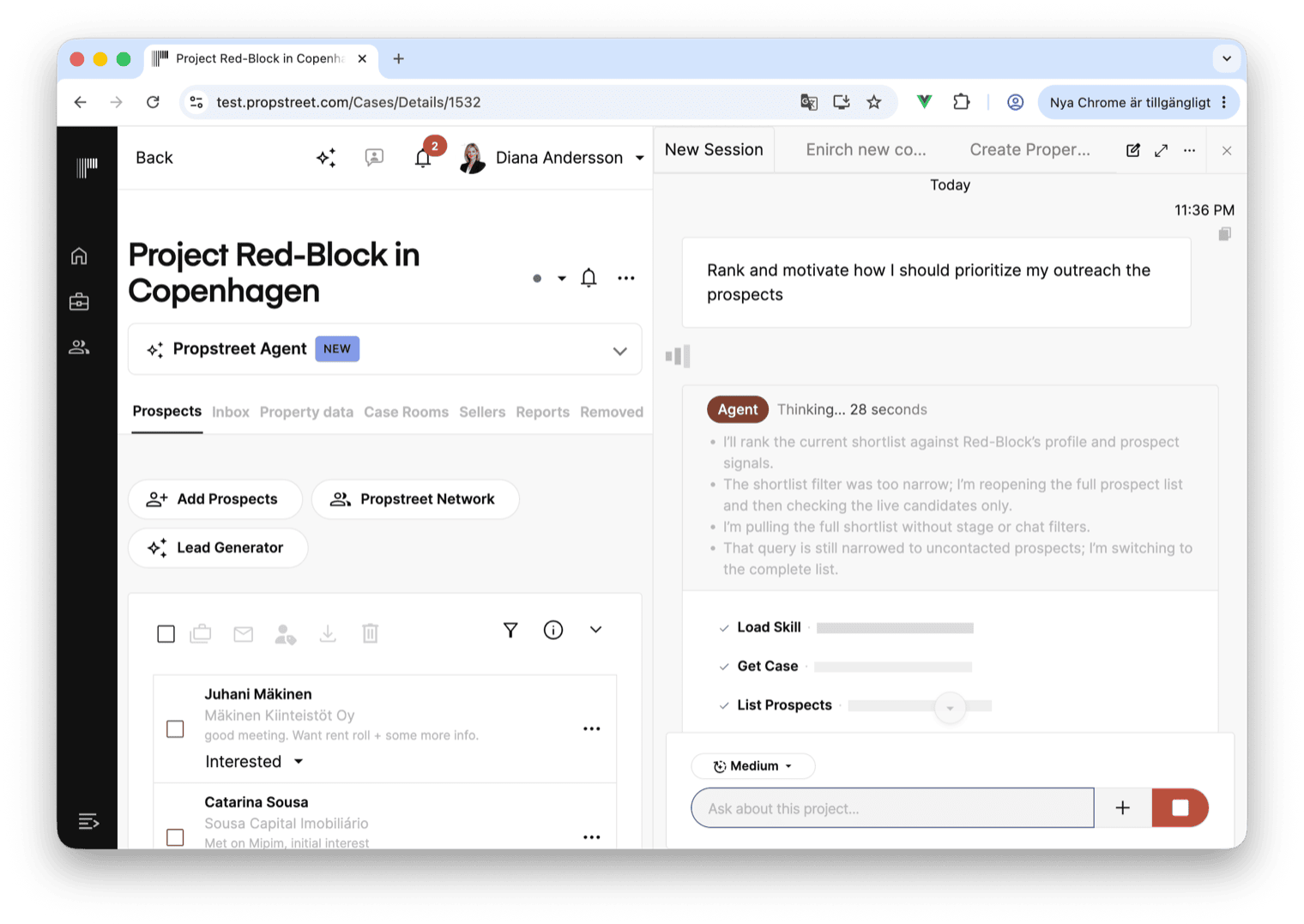
| Rank | Rank my current shortlist for this case by fit — for each prospect, compare the case profile against the strategy notes and tags I have on the contact, enrich with public web context where useful, and explain the order. |
| Create a report | Help me create a report on this case — pick a useful angle and draft it for me. |
| Suggest more investors | Pick from my network where mandates fit, and add publicly-known investors whose mandate matches the asset and region. |
| Catch up on the week | Go through my active cases, prospect activity, and anything worth knowing. |
Pick the one that matches what you're trying to do, or skip the shortcuts and type your own question in the Write a message … field at the bottom. The Agent reads what you wrote, decides which tools it needs, and starts working.
A first conversation worth running on day one: open the Agent from any active case and click Run summary. You get a two-week recap of who moved, who went quiet and what's worth a phone call this week — in under thirty seconds.
What it knows about — and what it doesn't
The Agent's context is everything it needs to be useful and nothing it shouldn't see. From the moment you open the panel, three layers of context are loaded automatically:
- You. Who you are, your role (broker, investor, analyst), what firm you work at, what language your interface is in, and the parts of Propstreet you have access to.
- Where you are. The page you opened the Agent from. If you opened it on a case, the Agent knows the case's name, asset type, location, status, stage, prospect list and recent activity. If you opened it on a contact, it knows the contact's company, role, mandates and recent notes. If you opened it from nowhere in particular, the Agent works without a page context and asks you for what it needs.
- Your firm's data. Every case, contact, company, prospect, mandate, Teaser and activity row you can see in Propstreet — the Agent can search and read all of it. It uses search the way you do: by name, by tag, by free-text, by location, by recent activity.
There are three things the Agent deliberately doesn't see:
- Other firms' data. The Agent runs in your Propstreet tenant. It cannot see your competitors' pipelines, and they cannot see yours. When the Agent helps you research a counterparty, it uses the public web — not another tenant's records.
- The public web by default. Web search is a setting you turn on (more in step 5). When it's off, the Agent works entirely from your Propstreet data. When it's on, the Agent can look up public-market context — listed transactions, leadership changes, press releases — but it strips confidential deal facts from anything it queries externally, so a Propstreet Teaser never ends up in a third-party search engine.
- The future. The Agent is not a forecasting tool. When you ask it to make a call, it tells you what's likely and what's uncertain, and it cites the evidence. If it doesn't know, it says it doesn't know.
The Agent also remembers within a conversation. If three turns ago you said "focus on logistics in the Nordics", the Agent will still be focused on that when you ask the fourth question. It does not, however, remember between conversations: opening a new conversation is a fresh start. If there's a fact you want it to use every time, capture it as a team skill — that's exactly what skills are for. Read the Team skills guide →
The Agent's toolkit
The Agent has a toolbox of around forty tools and picks from them on every turn. You never have to know which one it's going to use — it tells you in plain English, with a one-line preamble before each tool call ("Looking up the case…", "Searching your network for office-focused investors…", "Checking recent Stockholm retail transactions on the public web…").
- Finding things. The Agent can search and list cases, contacts, companies, prospects, offers, Teasers, mandates and activity. It can search by name, by tag, by location, by stage, by status, by a time window like the last two weeks, by a structured filter like owner:me or tag:decision-maker, or by a free-text idea like "investors who like logistics in the Nordics". It can open a single entity in detail to read everything about it.
- Searching the public web. With web search enabled, the Agent can pull external context — press releases, regulatory filings, transaction databases, recent news. It can never leak confidential deal terms into a search engine: the prompt and the platform both guard against that.
- Writing things. The Agent can draft a report (a long-form, save-and-share Markdown document — see step 7), draft an email to a specific contact, or log an activity note on a contact, company, case, prospect or offer.
- Updating your CRM. The Agent can create or update a case, a contact, a company, a property, a prospect or a mandate. It can add a prospect to a case or remove one. Anything destructive — deleting a case, closing an offer, removing a contact — needs your explicit sign-off (see step 6).
- Working with the Propstreet system itself. The Agent can open a page in the product when its answer references one ("Opening the case…"), and it can list, run, edit, pause or delete your scheduled tasks and your team's skills.
A typical multi-turn conversation might use five or six tools without you ever thinking about it. The Agent shows you what it ran — under each reply you'll see a small block with the tool calls, and a Sources section at the bottom listing the records and web pages it cited.
Web search is off by default. Turn it on in Settings → Agent → Preferences when you want the Agent to research counterparties, market context or comparables. You can still toggle it per conversation from the panel.
Approving what the Agent does
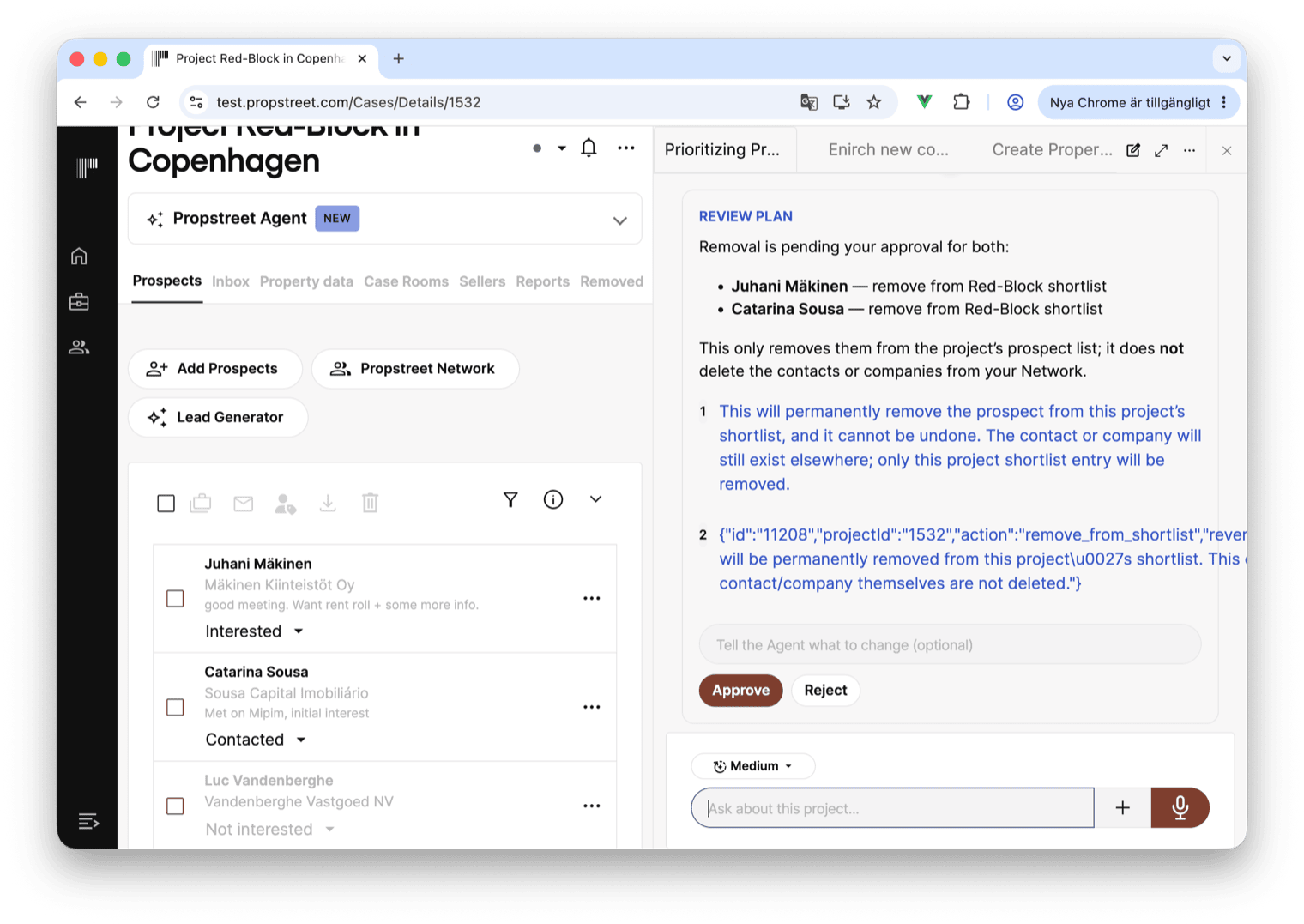
The Agent never silently changes your data. When it wants to do something that writes to your CRM, sends an email, or deletes anything, it stops and asks you for sign-off first:
- The Agent describes its plan in plain English. A grey card appears in the conversation, titled Review plan, with a short summary at the top and a list of every step it wants to take — "Add Acme Capital to the shortlist of Office Stockholm", "Tag the contact as decision-maker", "Remove the duplicate contact".
- You read the plan and click one of two buttons. Approve runs the plan top to bottom: the card flips to Making the approved changes, the steps execute in order, and the Agent posts a one-line outcome at the end — "Done — all three approved actions completed." Reject discards the plan: a short feedback field opens ("Tell the Agent what to change (optional)"), and the Agent reads your note before it tries again. "Don't delete the case, just close it" gets you a different plan on the next turn.
- If something fails partway through, the card shows the partial outcome: "The approved plan only partially completed: 2 of 3 actions completed, 1 failed, 0 skipped." The Agent then explains what failed and what it can do about it.
Approval is per-package. The Agent batches everything it wants to do on one turn into a single card, so you don't have to click through one prompt per step. Reading and replying to web pages, searching the public web, looking up a contact, opening a case — none of those need approval, because none of them change your data.
The Agent will never write to records it doesn't have a concrete value for. It will not, for example, "fill in" a missing phone number with a guess. If it doesn't know, it asks you.
Reports — the Agent's other output
Most of what the Agent produces lives in the conversation. But for anything you'd like to come back to, share with a colleague, send to a client, or print — you ask the Agent to save it as a report.
The Agent never saves a report on its own. It saves one when you ask it to: "save this as a report", "write me a memo about this", "draft a briefing on this case". Saving a report is immediate — it isn't approval-gated the way a CRM write is, because nothing about your pipeline changes. The report simply appears in your library, and you can revise or delete it whenever you like.
Once saved, a report:
- has a title you choose;
- lives in your firm's Propstreet tenant alongside your other documents;
- can be linked to a case, in which case everyone with access to the case can read it (but only you, the author, can delete it);
- can be revised. If you ask the Agent to "update the report" or "save this revised version", it overwrites the existing report and keeps the old version in the history. Same-day revisions are time-stamped so you can tell which one is the latest;
- can be downloaded as Markdown or printed from the browser.
Reports are the natural way to publish the Agent's work to your seller via the Seller Portal. A report you drafted in the Agent panel can be shared into the Seller Portal with one click — and stays read-only on the seller side, exactly as you wrote it. Read the Seller Portal guide →
The line you want to use: "Save this as a report — call it [title], and link it to this case." Linking it to the case is what makes it visible to the rest of the deal team.
Attaching files and pasting context
The Agent reads what you type — but it also reads what you give it. Three ways to add context to a turn:
- Drag and drop a file onto the chat. The drop zone takes a single file at a time and you'll see the prompt "Drop file to attach to your message" while the file is in flight. Once dropped, the file shows up above the input with its name, size and a remove icon. Send your message and the Agent reads the file as part of the turn.
- Click the attach icon next to the chat input. It opens a small menu where you can pick a new file from your device or, if you're on a case, reuse a file already in one of the case's rooms.
- Paste a long block of text straight into the input. If the paste is longer than a paragraph or two, Propstreet automatically converts it to a .txt attachment so the chat input stays readable.
Supported file types: PDF, plain text (.txt), Markdown (.md), CSV, Excel (.xlsx), and images (.png, .jpg, .jpeg, .webp, .gif). Folders aren't supported — drop individual files instead.
What the Agent does with the file depends on the type. PDFs and spreadsheets are read as text — the Agent sees the content, not just the filename. Images are read with vision: you can paste a screenshot of an offer document and ask "what does this offer say about the rent roll?" and the Agent will read it. Excel files become Markdown tables so the Agent can reason about the rows. Old .xls files (the binary format before .xlsx) are not supported — re-save them as .xlsx first.
Sessions and history
Every conversation is a session, and every session is saved. The Agent panel header has a row of tabs at the top — each tab is one session. The active one is highlighted; the others are parked. Click a tab to switch back to that conversation, scrollback intact.
Three things to know about sessions:
- They live forever (unless you archive them). The Agent doesn't delete old sessions. You can open a conversation from three months ago and read what was said. If you want to keep the tab bar clean, click the archive icon on a tab; archived sessions move out of the main bar but stay searchable from the history panel.
- They're scoped to you, in a tenant. Sessions are per-user inside your firm's Propstreet tenant. Your colleagues don't see your sessions, you don't see theirs. (Reports you save can be shared with colleagues on the same case — see step 7. Conversations cannot.)
- They're searchable. The history panel lets you search session names and the first turn's text. If you're hunting for a memo you wrote two weeks ago, "Stockholm retail" will probably find it.
To start a fresh thread, click + New session at the top of the panel. The new session loads any current page context (if you opened it from a case, the case is wired in) but no message history.
Long conversations are fine. The Agent keeps context across many turns. But if you're switching topic — say, from a case in Stockholm to a market-research question — a new session is cleaner and keeps the Agent's attention where you want it.
Reasoning effort and Quick shortcuts
Two settings you can adjust per message:
- Reasoning effort — a small dropdown above the chat input. The default is Low, which is fast and gets the right answer for most everyday questions. High is slower (a handful of extra seconds) but the Agent thinks harder before replying — useful for complex analysis like ranking a shortlist or evaluating a Teaser. Pick the level when the question is going to be hard; otherwise the default is fine.
- Web search — toggleable per session if you're on a plan that includes it. Off, the Agent stays inside Propstreet. On, it can reach out to the public web for market context. You can switch it on for a turn and back off for the next one.
Quick shortcuts are the starter cards from step 3. They're not first-time-only — the Quick shortcuts chip stays in the chat input throughout. Tap it any time to insert a curated starter for the page you're on. Brokers also have built-in workflows for Weekly recap, Onboarding, Suggest prospects, Find opportunities (strategy), Investor outreach and Teaser quality control — they all show up in the shortcut grid where they're relevant.
Pair it with Skills and Schedules
Two features extend the Agent beyond the chat:
- Team skills are reusable instructions the Agent applies on every conversation. If your firm always wants the same three checks done before sharing a mandate, you write that down once as a skill — and the Agent applies it the next time it sees a mandate, automatically. The Agent picks the right skill from the description you wrote; you don't pick it from a menu. Team skills →
- Scheduled tasks let the Agent run without a human in the chair. You write an instruction ("Each Monday morning, find new commercial cases in my area and email me a short summary"), pick a schedule, and the Agent runs by itself — at a fixed time, at a one-off moment, or whenever something happens in your network. The result lands as a report and a notification. Schedule the Agent →
Scheduled runs use the same Agent as the chat. Skills apply equally to the chat and to scheduled runs. The three features are designed to fit together: a skill encodes your team's process, the Agent applies it on every turn, and a schedule fires the Agent when no one's watching.
Beyond Propstreet itself, the Agent also exposes Propstreet's data to external AI clients via MCP (Model Context Protocol). If you live in an external AI assistant that supports MCP, you can connect it to Propstreet and ask it the same questions you'd ask the in-app Agent. Authentication is per user, and the external assistant sees exactly what you see in Propstreet — your firm's data, no one else's. The MCP setup steps live on the Propstreet Agent feature page under "Bring Propstreet to the AI you already use". Propstreet Agent →
The most common combination: a weekly recap schedule that runs every Monday morning, a house tone and approval rules skill that shapes how the Agent writes, and the in-app chat for everything ad-hoc during the week. That's the trio that gets the most out of the Agent for the least set-up.
Quotas and limits
The Agent has a monthly limit per firm. Every interactive question and every scheduled run counts as one "answer". The exact allowance depends on your plan: Free plans get enough to try it out, Professional plans get a working allowance for everyday use, and Team plans share the pool across everyone in your firm.
You won't be surprised by the limit. As your usage approaches the cap, a banner appears in the Agent panel:
- Running low on AI answers — "Upgrade for a higher limit and avoid interruption." The banner is dismissible; you can keep working.
- Out of AI answers — "Upgrade to continue right away." Free plans only; the Agent stops responding until you upgrade.
- Limit reached — "Reach out and we'll lift it." Professional plans; the Agent stops responding, and we'll talk before the next billing period.
- AI is paused for your team — "Reach out to your admin." Rare; usually means a billing issue at the firm level.
Each banner has an Upgrade button (Free) or no button (Professional and above — those are conversations to have with us). Until you act, the chat input is disabled and the existing conversation stays visible read-only.
Privacy and what stays in your tenant
The questions brokers usually ask, in the order they ask them:
- Your data stays in your tenant. The Agent runs inside Propstreet. Every record it reads, every report it writes, every email it drafts is stored under your firm's Propstreet tenant — same place your cases and contacts already live, under the same terms you already agreed to.
- The Agent doesn't see other firms' data. A Propstreet tenant is a hard boundary. No matter how the Agent searches, it cannot return another firm's contacts, deals or activity, and it cannot leak yours to anyone else.
- The model doesn't train on you. Conversations with the Agent are processed by a frontier reasoning model under terms that explicitly exclude using your data to train the underlying model. The processor runs in a tenanted environment with no retention beyond the time needed to produce the response.
- Web search is separate. When you enable web search, the Agent's external queries hit a public search index. The Agent is instructed never to put confidential deal terms — exact addresses, non-public valuations, NDA-room contents — into external queries. If you want the Agent to keep something out of the public web entirely, tell it: "This is confidential — don't search for it externally."
- You can delete what you write. Reports you save can be deleted by you, the author. Sessions can be archived. Drafts the Agent prepares never send themselves: an email drafted by the Agent opens in your mail client when you click Send, and you decide whether to actually send it.
Agent conversations are saved to your account. Archiving a conversation does not delete it. You can request access, export, or deletion by contacting feedback@propstreet.com. Read how Microsoft connector data is handled →
When the Agent gets it wrong
The Agent is good, not infallible. Three failure modes worth knowing:
- It gets the data right but the analysis wrong. A frontier model can still misread a situation. Treat the Agent's analytical calls — "this Teaser is a poor fit for Acme", "this prospect is going cold" — as a smart colleague's take, not a verdict. The Agent's job is to surface what's worth your attention; yours is to decide. If the call looks off, ask it to defend the call. "Walk me through why you ranked Acme last."
- It says it doesn't know. When the Agent doesn't have enough to go on, it tells you. "I don't have a recent valuation for this property." That's the desired behaviour. It's far better than a guess. Give it the missing fact and it will pick up where it stopped.
- A tool fails. Sometimes a tool the Agent tried to call comes back with an error — a record that no longer exists, an external service that timed out, a partial-success on a multi-step approval. The Agent will say so plainly ("The approved plan only partially completed: 2 of 3 actions completed, 1 failed, 0 skipped") and tell you what failed. The right next message is usually "try again" or "do the other one and skip the failing step".
A useful habit when you're new to the Agent: ask it to show its work. "Show me the records you used." "Which prospect is that note about?" "Cite where you got the figure." The Agent will pull the sources into a Sources block at the bottom of the message, so you can verify before you act.
If the Agent does something you didn't expect — wrong, surprising, or just unhelpful — the Reject button on any approval card has a feedback field. Use it. "Don't suggest external investors when I asked you to look in my network only." That feedback isn't telemetry; it's input the Agent sees on the next turn.
If you hit a bug or want to suggest a feature, use the in-app feedback link or reach out to your Propstreet contact. We read every message.
- The Agent already knows your pipeline, your network and your vocabulary, and it speaks plain English about all of it
- Open it from the top bar, the keyboard shortcut, or an Ask the Agent shortcut on any page. Pick a Quick shortcut to get started; type your own question once you have a feel for it
- It tells you what it's doing. Every reply shows its tool calls and a Sources list. Every write asks for Approve or Reject first
- Reports save the work you want to come back to. Sessions save the conversations. Files you drop in get read
- Pair it with Team skills and Schedules to encode your firm's process and let the Agent run when no one's at the keyboard
- You're in control of the limits and the privacy. Quotas are visible. Web search is opt-in. Your data stays in your tenant
Trust it on small things first, read its work, correct it when it's wrong, then hand it bigger tasks. Within a week most brokers stop thinking of it as "the AI" and start thinking of it as the Agent.