
Schedule the Agent
Let the Agent work for you on a schedule or in response to activity in your network — no need to be in the chat.
How scheduled runs work
The Agent normally runs when you ask it something in the chat. Scheduled runs flip that around: you write the instructions once, choose when they should fire, and the Agent runs by itself — at a fixed time, at a one-off moment in the future, or the next time something happens in your network.
Every schedule belongs to you personally. Other people on your team have their own schedules and don't see yours, and yours don't see theirs. The Agent always runs with your access — so it can only see the cases, contacts and companies that you can see.
Create your first scheduled task
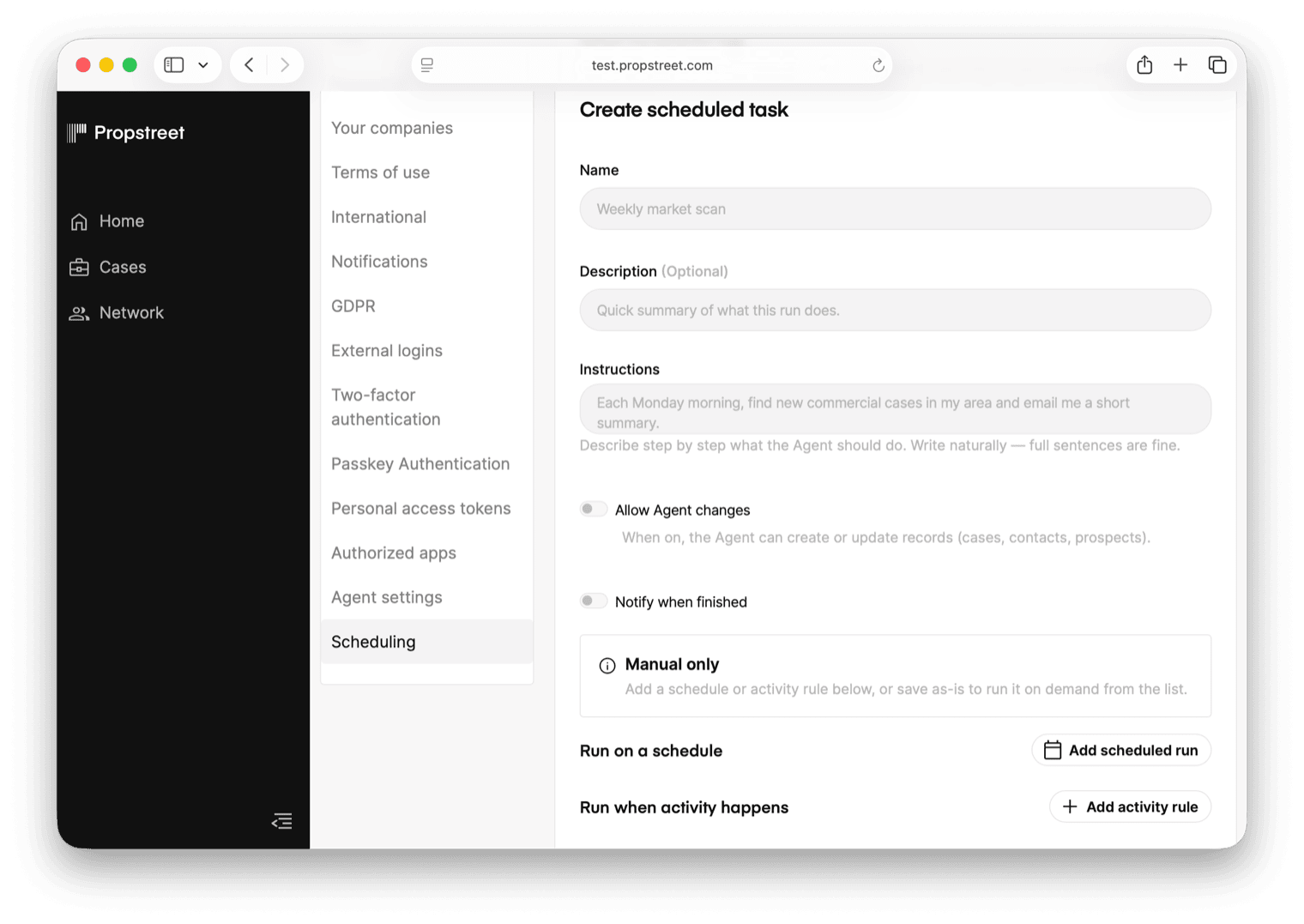
Open Personal Settings → Scheduling from the user menu in the top right. The first time you visit, the page is empty with a single Create scheduled task button. Click it and the editor opens directly on the page.
Three fields are required to save:
- Name — a short label that shows up in the list, for example Weekly market scan.
- Instructions — what you want the Agent to do, written naturally in full sentences. You can paste a long prompt here (up to about 100,000 characters), but most useful instructions are a paragraph or two.
- At least one trigger — when the schedule should fire. We cover triggers in step 3.
Write the instructions field as a brief, not a search query. "Each Monday morning, find new commercial cases in my area, summarise the three most interesting ones for an office-focused investor, and email me a short report" is what a good one looks like — full sentences, what to look for, what to do with what you find, what shape of output you want.
Choose when it runs
There are three kinds of triggers and you can mix and match as many as you like on a single schedule. If you save without any trigger, the schedule still gets created — it just runs only when you click Start now. The page shows Manual only so you don't lose track of it.
Recurring schedule
Click Add scheduled run under Run on a schedule. Pick one of the presets:
- Every weekday at a time you choose (Monday to Friday, your local time).
- Every week on a specific day (Mon–Sun) at a chosen time.
- Every month on a specific day of the month.
- Once at a specific date and time.
- Custom schedule if you need something the presets don't cover — for example every two hours during office hours. This reveals a Custom timing pattern field where you can type a cron expression like 0 9 * * 1-5. Most teams never need this.
The smallest recurring interval is five minutes; the schedule always runs in your account's timezone, shown next to the time picker as "Uses … time".
Activity rule
Click Add activity rule under Run when activity happens. Pick the kind of activity that should fire the Agent:
| Trigger | Fires when |
|---|---|
| New case / Updated case | A case is created or has its details changed |
| New prospect / Updated prospect | A prospect is added to a case or its status changes |
| New contact / Updated contact | A contact is added or edited in your network |
| New company / Updated company | A company is added or edited in your network |
| New link / Updated link | A relationship between a contact and a company is added or edited |
Then decide the scope: Only my records — the rule fires only for cases, prospects and contacts you own. Or Everyone in my company — the rule fires for any record you can see, including colleagues' work.
You can also tell the Agent to Wait before running. The default is Run immediately, but you can pick Wait 1 minute or Wait 5 minutes to bundle several events into one run — useful if a typical action creates several updates in quick succession.
Pause a single rule without touching the rest of the schedule by ticking Pause this rule on the row. The schedule keeps running for the other triggers.
Decide what the Agent is allowed to do
Three settings below the triggers control how the Agent behaves when it runs:
- Reasoning Effort — a dropdown with None, Low, Medium (default) and High. Higher levels make the Agent think for longer before answering; choose High for harder analytical work like reviewing an opportunity against a strategy, and Low for simple recurring summaries.
- Allow Agent to write — off by default. When off, the Agent can read everything and write reports, but it can't create or change cases, contacts or prospects. Turn this on if you want the schedule to be able to act on the data — for example update every contact's strategy where I've added a recent note. Destructive actions (delete) always require your approval, even with this on.
- Notify when finished — off by default. Turn this on if you want a notification each time the run finishes, instead of relying on the run history.
Start with Allow Agent to write turned off for the first few runs of a new schedule. Read the reports, confirm the Agent is doing what you expected, then turn writes on if you need them.
Watch it run
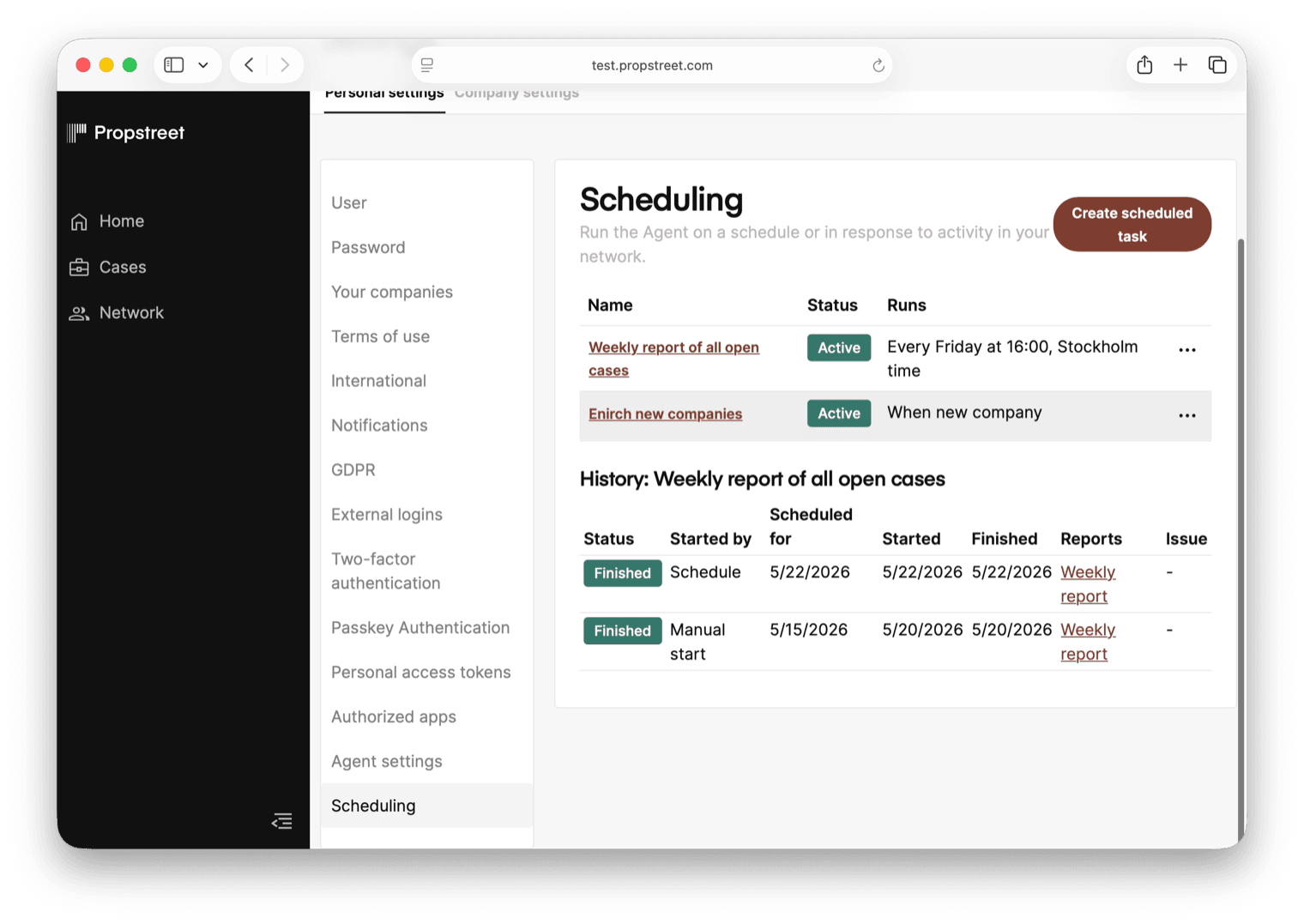
Save the schedule and it appears in the list. Click the schedule name to expand its History panel below the list. Each run shows up with:
- A Status badge — Waiting before it starts, In progress while it runs, Finished on success, Needs attention on failure, Waiting for approval if the Agent paused for a destructive action.
- A Started by column — the schedule that triggered it, the activity that triggered it, or a manual Start now press.
- The Scheduled for, Started and Finished timestamps.
- Any Reports the run produced — click a report title to open it in a side panel without leaving the Schedules page.
- The Issue column shows the error if a run failed.
To run a schedule once on demand without waiting for the next trigger, open the row menu (the three-dot icon at the end of the row) and click Start now. You see the new run appear in the history immediately.
Pause, edit or delete
The same row menu has:
- Pause — stops new runs from firing. The schedule stays in your list so you can resume it later.
- Resume — turns a paused schedule back on.
- Edit — reopens the editor with the saved values; change anything and click Save.
- Delete — removes the schedule. A confirm dialog asks "Delete scheduled task — Are you sure you want to delete this schedule? This cannot be undone." Run history is kept for audit even after delete.
Pausing is always allowed. You can keep a schedule paused even if your plan no longer covers scheduled runs, so nothing fires by accident — but you need a plan that includes Schedules to resume or create new ones.
Limits to know about
The hard caps:
- You can have up to 50 active schedules at the same time.
- A single schedule can have up to 25 triggers (any mix of recurring, one-off and activity rules).
- The smallest recurring cadence is five minutes.
- A schedule that fails five times in a row is paused automatically — open the History panel to read the error and either fix the instructions or resume the schedule.
- Open Personal Settings → Scheduling and click Create scheduled task to set up a recurring run
- Use Run on a schedule for time-based work and Run when activity happens for event-driven work
- Keep Allow Agent to write off until you've reviewed a few runs
- Click a schedule to see its History, Start now to test it, Pause to mute it
A good first schedule is the morning briefing: weekdays at 7:30, summarise yesterday's prospect updates and surface any cases that moved status. Read-only, leave Allow Agent to write off — you're learning what the Agent does, not yet what it should change.