
Working with reports
Turn the Agent's analysis into a document you can keep, revise, and share with your team or your seller.
What a report is
A report is a document the Agent writes for you. Where a chat reply lives only in the conversation, a report is saved: it has a title, it lives in your firm's Propstreet tenant next to your cases and contacts, and you can come back to it days or weeks later. Reports are written in clean, formatted text — headings, lists, tables, the lot — so a case brief, a prospect overview or a valuation memo reads like something you'd hand to a colleague.
A report keeps track of a few things automatically: who wrote it, when it was created, when it was last revised, what language it's in, and — if you ask for it — which case it belongs to. You'll see those details in the report viewer. The one thing a report doesn't have is a length limit: it's as long as the analysis needs to be.
Reports are created by the Agent, not by hand. There's no blank "New report" page to fill in — you get a report by asking the Agent for one. Everything in this guide starts with a sentence you say to the Agent.
Ask the Agent to save one
The Agent never saves a report on its own — even a long, detailed answer stays in the conversation unless you ask to keep it. You ask in plain English, with any of the phrasings you'd use naturally:
- "Save this as a report."
- "Write me a memo on this case."
- "Draft a briefing on the Stockholm retail opportunity and keep it."
- "Turn that analysis into a report called Q2 prospect overview."
The Agent writes the report and saves it straight away — saving a report doesn't change your pipeline, so it doesn't go through the Review plan approval step that CRM changes do. The report appears in your library immediately, and you can revise or delete it whenever you like.
Two things make a report land where you want it:
- Give it a title. If you don't, the Agent picks one — but "Acme Case Brief" is easier to find later than whatever it would have guessed.
- Link it to a case. Add "link it to this case" (or name the case) and the report is filed against that case, where the rest of the deal team can find it. Without a case link, the report is private to you. This is the single most important choice you make about a report, and step 6 covers exactly what it changes.
The line worth memorising: "Save this as a report — call it [title], and link it to [case]." Title plus case link in one sentence, and the report is both findable and shared with your team.
The Agent won't save a placeholder. If you ask it to "save a report" before there's anything worth saving, it asks what you'd like the report to cover rather than filing an empty document.
Where your reports live
Reports show up in two places, and the difference is just scope:
- In the Agent panel. Open the Agent and click the Reports view in the panel header. This is your full library — every report you've created, plus every report a colleague linked to a case you have access to, newest first. Each row shows the title, the date, and an author badge: You for your own reports, the colleague's name for theirs. If you haven't made any yet, the list reads "No reports yet. The agent will add them here when you ask it to create a report."
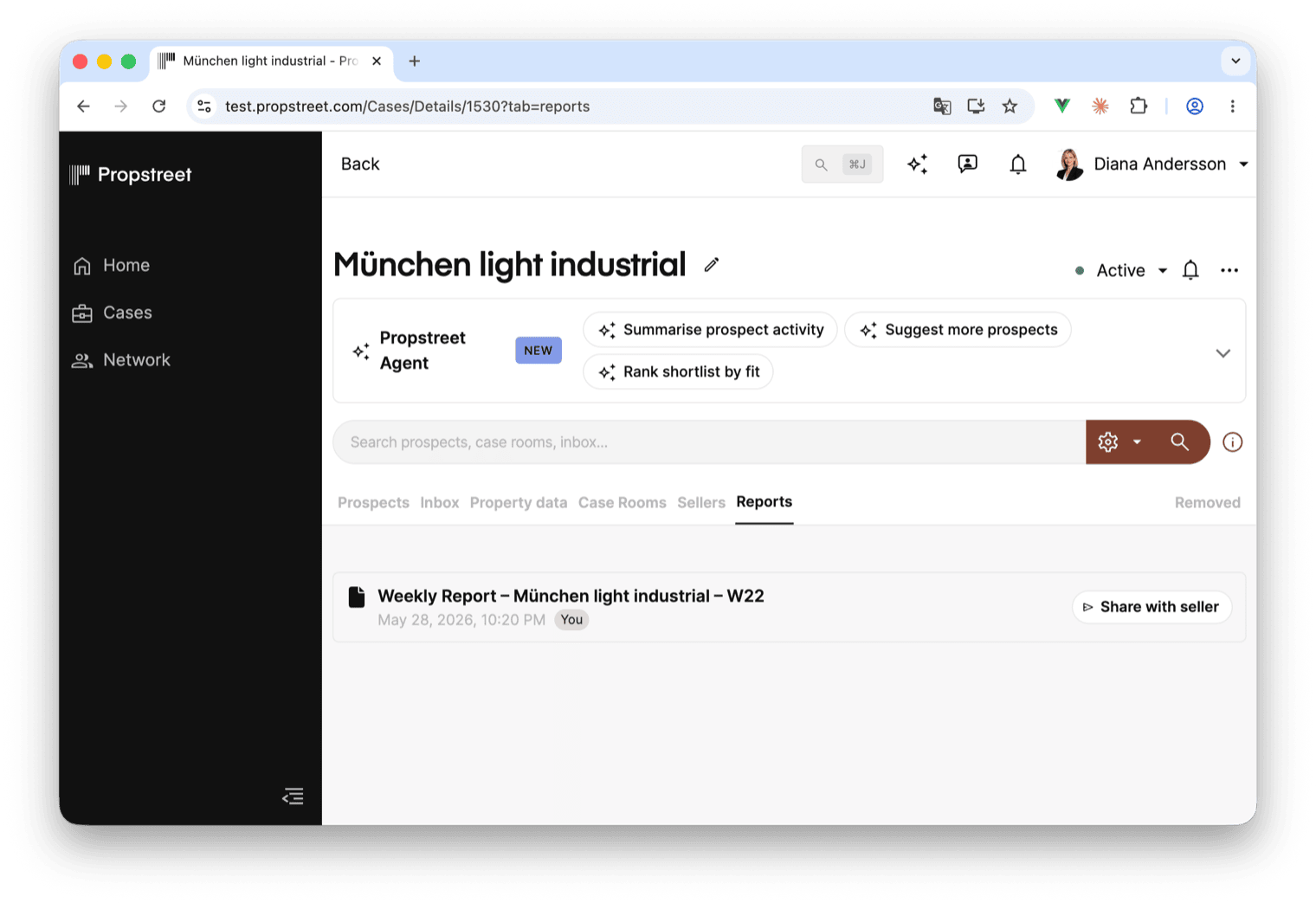
- On a case. Open a case and go to its Reports tab. This shows only the reports linked to that case — the natural place to look when you're working a specific deal. Its empty state reads "No reports yet" with the hint "Ask the agent to create a report on this case — it will appear here.", and offers a one-click starter card — Let the agent draft a report — that opens the Agent already pointed at the case.
Click any report to open it in the viewer. The same report can appear in both places at once: a report linked to a case shows up in that case's Reports tab and in your Agent-panel library.
Read, copy, download, print
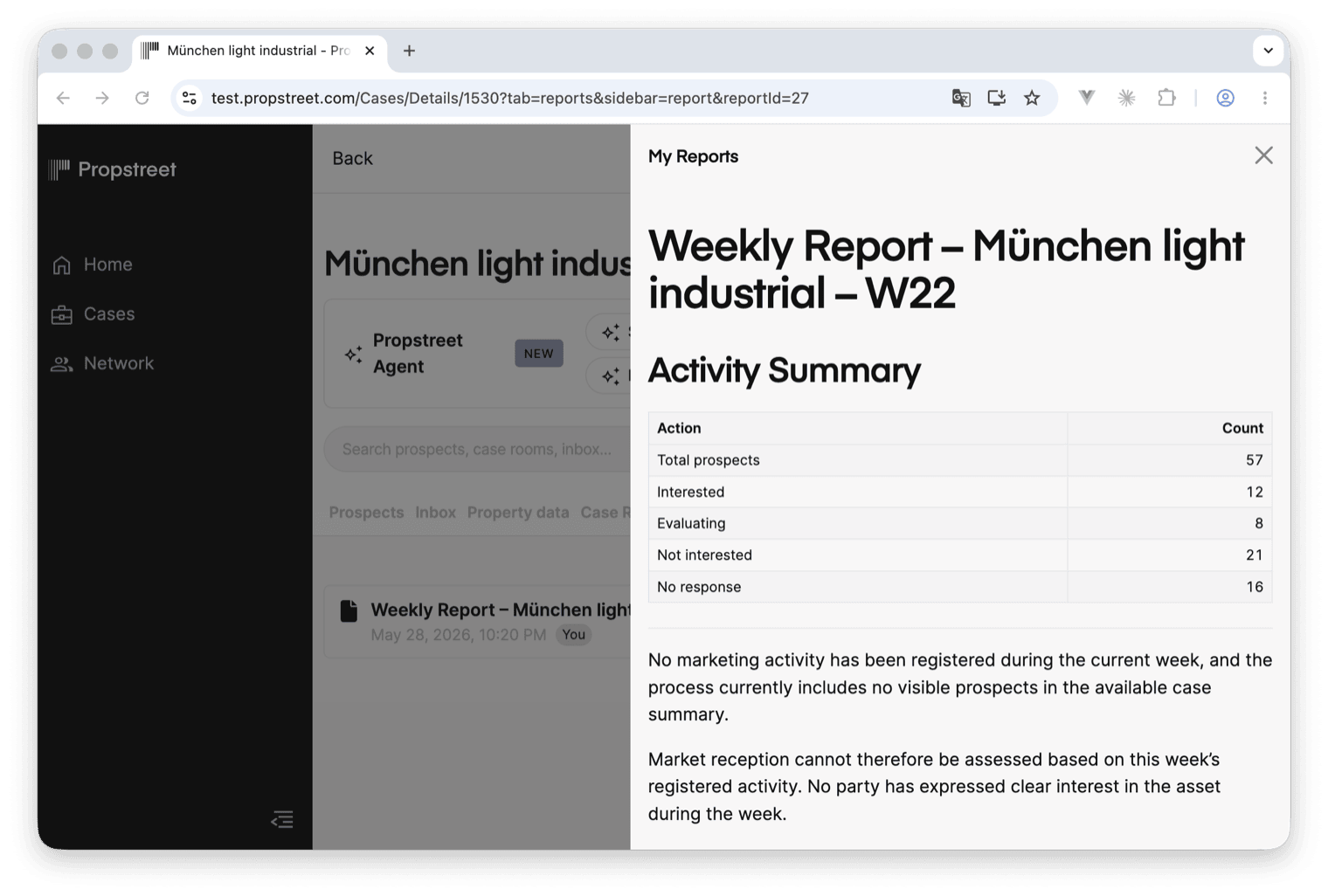
Open a report and you're in the report viewer — the full document, formatted, with a small toolbar. The toolbar gives you everything you'd want to do with a finished document:
- Copy markdown copies the whole report to your clipboard as formatted text, ready to paste into an email or a doc. You'll see a quick Copied! confirmation.
- Download as .md saves the report to your computer as a Markdown file, named after the report's title.
- Print opens your browser's print dialog. The printed page carries the report's title and date at the top, so a printout is self-identifying even without on-screen chrome — and from the print dialog you can "Save as PDF" if you need a PDF copy.
- More actions (the three-dot menu) holds the less-common actions, including Delete if you're the report's author (more on that in step 6).
The viewer also shows the report's Last updated time, so you always know how fresh what you're reading is.
A report's text is read-only in the viewer — you can't hand-edit the Markdown in place. To change a report, you ask the Agent to revise it. That's the next step.
Revise a report and use its history
To change a report, tell the Agent what you want different — "update the Acme brief with the new asking price", "add a section on the financing", "shorten the summary". The Agent rewrites the report and saves the new version over the old one. The title and the case link stay the same unless you ask to change them.
Crucially, the old version isn't lost. Every revision is kept, and you can browse the history from the version picker in the viewer toolbar:
- The picker shows Current when you're looking at the live version, or the timestamp of whichever older version you've selected.
- Open it and you get Current at the top, then every earlier version, newest first. A revision made earlier today reads as "Today 14:23"; an older one reads as its date, "19 Apr 2026" — so several edits on the same day are easy to tell apart. Each version shows who made it.
- If a report has never been revised, the picker simply says "No history available yet."
Select an older version and the viewer switches to show it, with a banner reading Viewing historic version. From there you can click Show changes to see a coloured diff against the current version (additions and removals highlighted), Hide changes to go back to plain text, and Back to current to return to the live version.
There's no one-click "restore" button. If you decide an older version was better, tell the Agent — "go back to the version from this morning" or "revert the last change" — and it rewrites the report to match, which becomes the new current version (with the in-between version still kept in history).
Who can see a report
This is the part worth getting right. A report's visibility is decided by one thing: whether it's linked to a case.
- Not linked to a case → private to you. A standalone report can only be seen by you, the person who created it. No colleague can open it, search it, or stumble onto it.
- Linked to a case → visible to the deal team. The moment a report is linked to a case, everyone with access to that case can read it. That's the point — it's how you share an analysis with the people working the deal — but it does mean a confidential memo becomes team-readable as soon as you link it. Link deliberately.
A few specifics:
- You link a report through the Agent, not through a settings menu — there's no "private / shared" toggle in the viewer. You say "link this to the Acme case" to share it, or "unlink this report" to make it private again.
- Only the author can delete a report, even when it's linked to a case. A colleague can read your case-linked report but can't delete it. To delete, open the report, use More actions → Delete, and confirm at the prompt — "Delete report? This report will be removed from your library. You cannot undo this action." Deletion is permanent.
- Reports never cross between firms. A report lives in your firm's Propstreet tenant. No one outside your firm can see it — and if your own access to a case is later removed, the case-linked reports go with it.
Rule of thumb: keep working notes and anything sensitive unlinked until you're ready to share, then link to the case when the deal team needs it. Linking is the share action — treat it like sending an email to the whole team.
Share a report with the seller
Linking a report to a case shares it with your team. To make a report visible to the seller, use Share with seller on the case's Seller Portal — a separate, deliberate action, because the seller is outside your firm.
You'll find the control on each report row in the case's Reports tab:
- If the case has a Seller Portal, each report shows a Share with seller button. Click it and the report becomes readable in the seller's portal. The button then shows Shared with seller with a green check, so you can see at a glance what the seller can and can't see.
- If the case doesn't have a Seller Portal yet, you'll see the hint "Create a Seller Portal to share reports with the seller." instead — set one up first, then come back and share.
- To stop sharing, click Remove from Seller Portal. You're asked to confirm — "Remove report from Seller Portal? The seller will no longer see this report in the Seller Portal. You can share it again later." — and once removed, the report disappears from the seller's view. You can re-share it any time.
On the seller's side, a shared report is read-only and always the current version — the seller sees the latest text, never the history, never your internal revisions, and they can't edit or delete it. What they see is exactly what you wrote.
Read the Seller Portal guide →
Sharing is per report and per portal — you choose which reports the seller sees, one at a time. Sharing one report never exposes the rest of the case's reports. If a case has more than one Seller Portal, you decide separately for each.
Good to know
A handful of things that don't fit anywhere else but save a support ticket:
- The Agent is the only author. You can't create a report by hand, and you can't paste your own document in as a report. If you have text you want as a report, give it to the Agent and ask it to save it.
- You revise through the Agent, not the keyboard. The viewer is read-only by design — every change goes through the Agent so the version history stays honest.
- Reports follow the Agent's language. A report is written in whatever language you were working in, but you can ask for a different one — "write this report in English even though we're chatting in Swedish."
- There's no public link. Reports stay inside Propstreet — visible to your team via a case link, and to the seller via Share with seller. There's no URL you can copy and send to someone outside Propstreet — by design, so a report never leaks out of your tenant.
- Reports are part of the Agent. Wherever you can use the Agent, you can create reports; if the Agent is paused for your team (for example, a quota or plan limit), report creation pauses with it, but you keep full read access to the reports you already have.
- Reports are the Agent's durable output — titled, formatted documents saved in your tenant, not lost when the conversation ends
- You create one by asking the Agent — "save this as a report, call it [title], and link it to [case]." There's no manual New-report button
- Find them in the Agent panel's Reports view (your whole library) or on a case's Reports tab (just that case)
- Revise through the Agent. Every revision is kept; the version picker lets you browse history and diff changes, and you ask the Agent to revert
- Visibility follows the case link — unlinked is private to you, linked is readable by the whole deal team. Only the author can delete
- Use Share with seller to give the seller a read-only, current-version copy of a report
The brokers who get the most from reports treat them as the deliverable, not the by-product. When a piece of Agent analysis is good — a comps memo, a shortlist rationale, a weekly recap — save it, link it to the case, and it becomes a shared artefact the whole team works from. The conversation got you there; the report is what you keep.