
Get started with Propstreet
Create your first case and start working with prospects in 5 minutes.
Create a new case
Click Cases in the left menu and then the New case button (top right). A new case is created immediately with status Draft. Click the pencil icon next to "Untitled case" to give the case a name.
In the case you will see four tabs: Prospects (your list of investors), Inbox (communication), Property data (property details) and Case Rooms (document sharing).


Search and filter cases
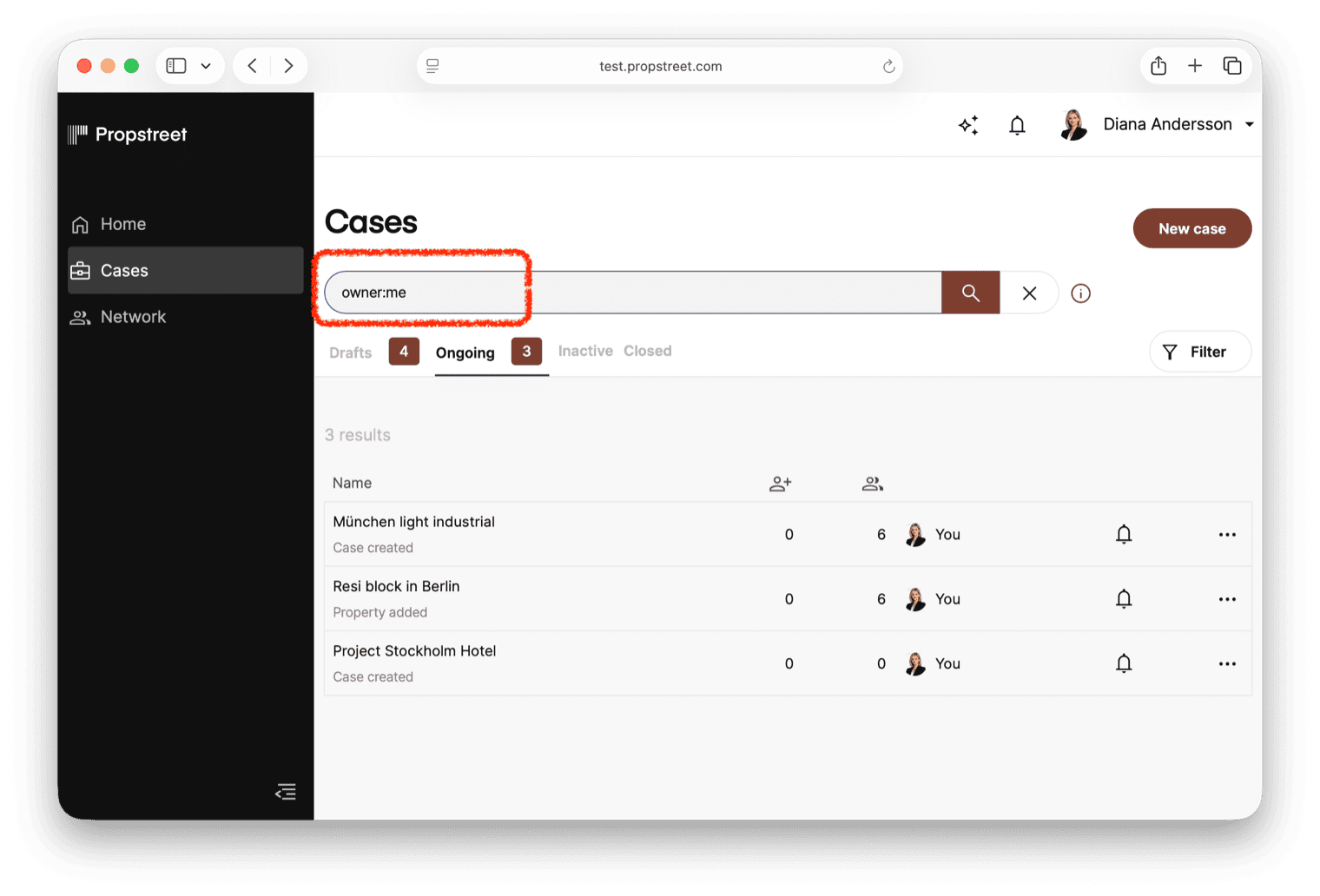
As your team grows and the case list gets longer, you can use the search box to quickly find the right case. Type freely to search by name, or use field:value filters to narrow your results.
| Filter | Description |
|---|---|
owner:me | Show only your own cases |
owner:anna | Show a colleague's cases — type first name or full name |
name:office | Search by case name |
prospect:acme | Find cases where a specific company is a prospect |
created:>2025-01-01 | Filter by creation date |
You can combine multiple filters in the same search, e.g. owner:me name:office created:>2025-01-01 to find your own office cases created after the start of the year.
Adding prospects
There are three ways to add investors to a case: manually, via Lead Generator, or by communicating a Teaser to Propstreet Network.
Manually
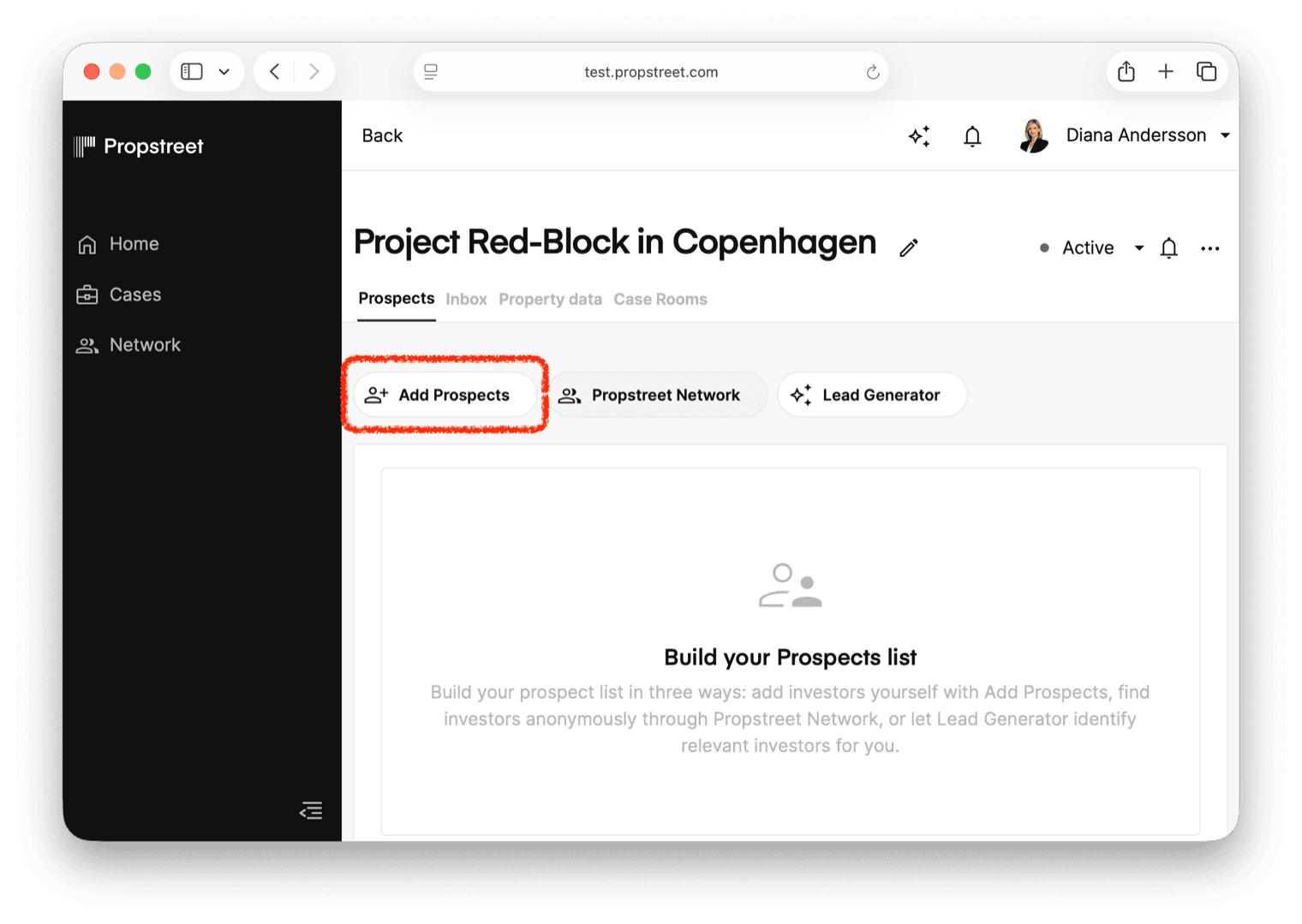
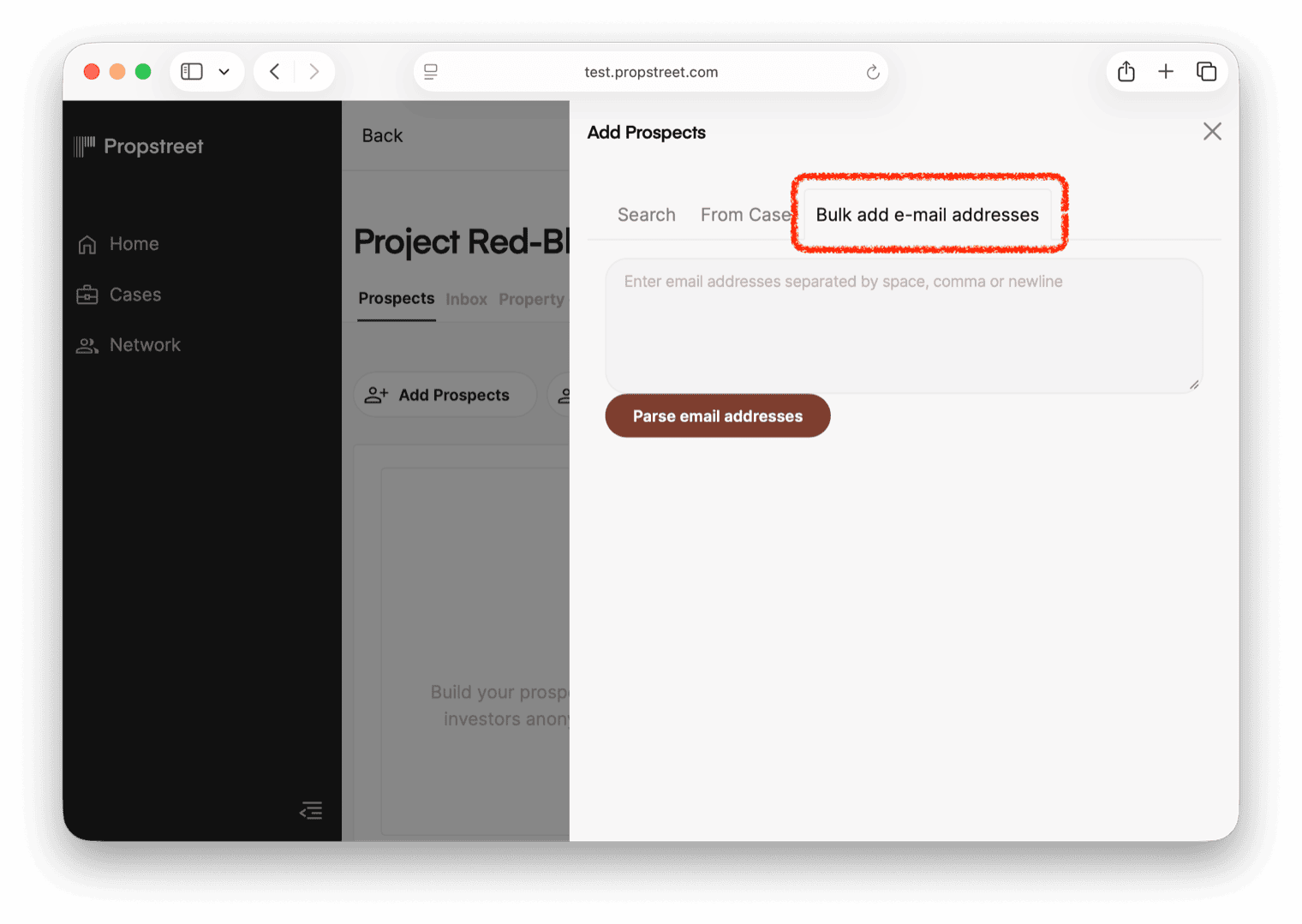
Click the Add button in the prospect list to open the sidebar panel. The panel has three tabs — Search, From Case and Bulk Add — making it easy to build your investor list whether you are starting from scratch or copying from a previous deal.
If you have already added an investor, a duplicate marker is shown immediately so you never add the same person twice.
Search
Search your entire network for contacts and companies. Toggle between AI search (interprets what you type freely) and Exact search (matches exact name or email). The search results clearly show which ones are already on the case.
From Case
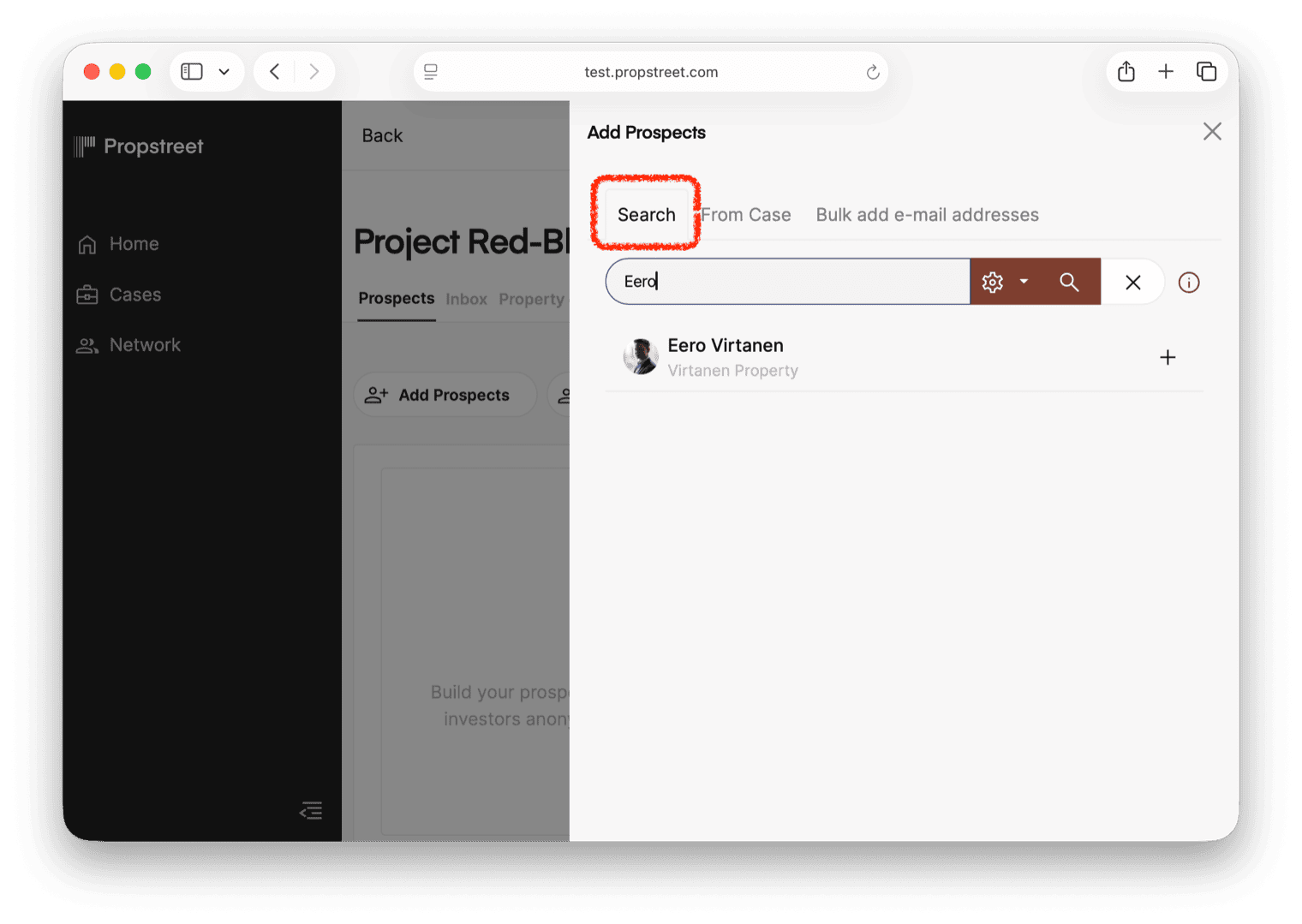
Reuse the prospect list from a previous case. Select a case, filter by classification (e.g. only "Interested" or "Bidder"), select all and add with one click. Perfect for similar deals — instead of building a new investor list from scratch you can copy a proven list in seconds.
Bulk import of email addresses
Paste email addresses to quickly add multiple prospects at once. The system automatically checks whether the addresses are already on the case before adding them.
Lead Generator
Lead Generator finds potential investors automatically based on the property characteristics. It searches your own network, Propstreet Network and the web. Lead Generator →
Communicate Teaser to Propstreet Network
Create an anonymized Teaser of your case and communicate it to matched investors in Propstreet Network. Interested investors can express interest and you choose which ones to proceed with. Communicate to Propstreet Network →
Update prospect status
Keep the prospect list current after every call. It's the data every other feature in Propstreet reads from — Lead Generator, the Agent, reports, the case search.
Each prospect has one of five statuses:
| Status | Description |
|---|---|
| Not contacted | New prospect, not yet contacted |
| Contacted | You have contacted the investor |
| Interested | The investor is interested |
| Bidder | The investor has submitted a bid |
| Not interested | The investor is not interested |
Click the status dropdown next to a prospect in the list and select a new status.
Always write a note
When you change a status, write a short comment describing why. The comment is logged in the timeline so the entire team can follow the history. Here are examples of good notes:
- "Called, interested in more information about the property"
- "Emailed teaser, awaiting response"
- "Meeting booked 15/3 to review the materials"
- "Has submitted an indicative bid of SEK 45M"
- "Declined — only focusing on logistics right now"
- "Has updated their investment strategy — now also interested in residential in Gothenburg"

Change case status
In the top right of the case view you will find the status button. Click it to change:
| Status | Description |
|---|---|
| Draft | The case is a work in progress |
| Active | The case is live and ongoing |
| Inactive | The case is temporarily paused |
| Close case | The case is completed/closed (see step 5) |

Close a case
When a case is completed, select Close case from the status menu. A dialog opens where you enter information about the outcome.
Select buyer type:
| Option | Description |
|---|---|
| Propstreet member | The buyer already exists as a prospect on the case |
| External buyer | The buyer came from outside Propstreet |
| No sale | The case was closed without a sale |
Enter the final price and yield if applicable. This data builds your knowledge base in Propstreet and provides better matches in future cases.
When a case is closed the prospect list becomes read-only. Make sure all statuses and notes are up to date before you close it.

- Create cases for all your mandates
- Add every investor you've contacted on a case as a prospect, even the ones who said no
- Update prospect status after every interaction — always write a note
- Change the case status as the case progresses
- Close the case with the correct information about buyer and price
A case whose prospect list is two weeks out of date is invisible to the rest of Propstreet — Lead Generator scores it wrong, the Agent answers from stale data, and the case search misses it. Update after every call.